In this section, we are going to show you how to add a color and an image to the background of a page which will fill the whole browser window. The following is a screenshot of the final result:
We will use the following image "page-background.gif" as background and repeat it across the top of the browser window.
Select "Tools" > "CSS Style Editor" from the main menu or press this button on the toolbar to open the CSS Style Editor.
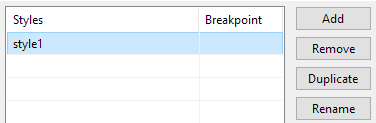
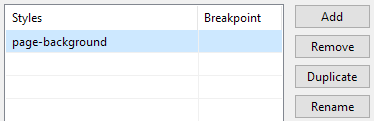
Press the "Add" button on the CSS Style Editor to create a new style and press the "Rename" button to change the name of the newly added style to "page-background".
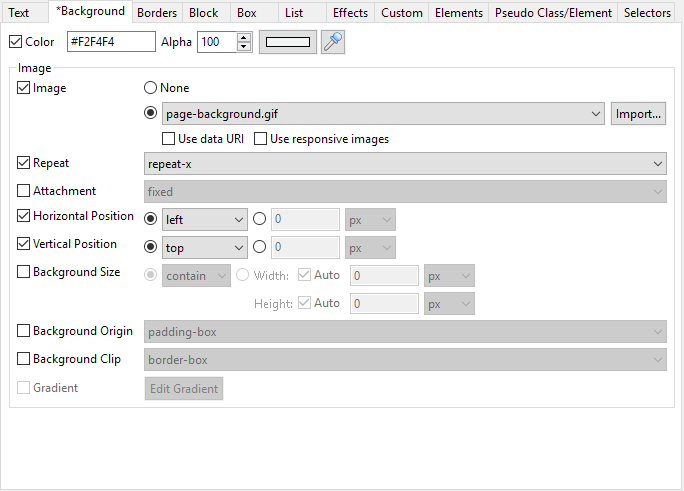
Select the "Background" tab on the left. Select the option "Color" and set the value to "#F2F4F4". Select the option image and choose the image "page-background.gif". Set "Repeat" to "repeat-x" so that the image will be tiled horizontally across the top. Set the "Horizontal Position" to "left" and "Vertical Position" to "top".
Press the "OK" button to save the style.
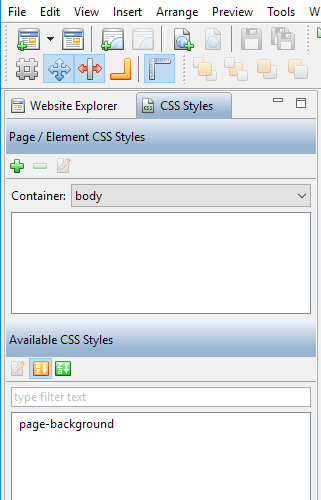
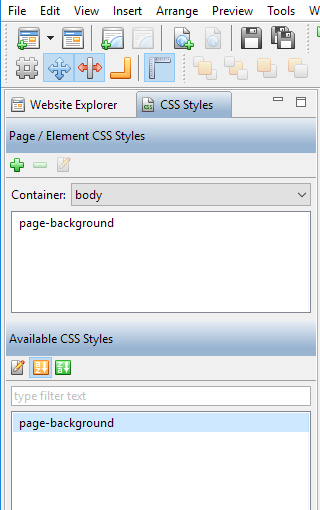
Open the page that you want to add the above background style. You may like to add it to a template page so that all the pages that use the template page will have this style automatically. Click on the blank area of the page. Select the "CSS Styles" tab as shown below. Select "body" from the drop down menu of "Container". You will find the "page-background" style shown in the panel "Available CSS Styles". Drag it to the panel "Page / Element CSS Styles" above or to the blank area of the page.
Press the "OK" button on the Page Properties Dialog to apply this style to the page. After this, the page will look like the one on the top of this page.




 on the toolbar to open the CSS Style Editor.