left arrow right arrow help header logo background

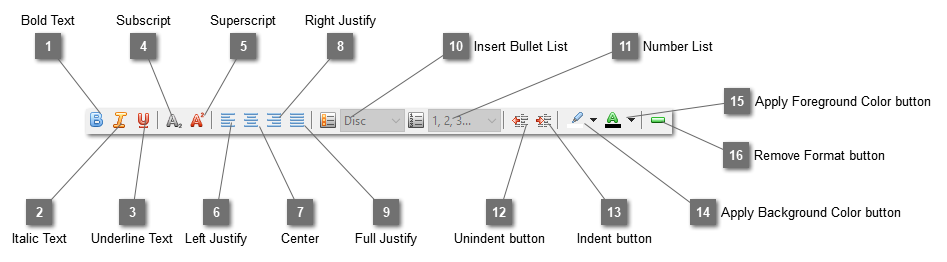
Table Element Format  toolbar

Table Element Format  toolbar
1

Bold Text

1. Bold Text
Bold the selected text.
2

Italic Text

2. Italic Text
Change the selected text to italic.
3

Underline Text

3. Underline Text
Underline the selected text.
4

Left Justify

4. Left Justify
Left justify the text.
5

Center

5. Center
Center the text.
6

Right Justify

6. Right Justify
Right justify the text.
7

Full Justify

7. Full Justify
Full justify the text.
8

Insert Bullet List

8. Insert Bullet List
Insert a bullet list. You can choose disc, circle or square.
9

Number List

9. Number List
Insert a number list. You can choose "1, 2, 3", "a, b, c", "A, B, C", "i, ii, iii" or "I, II, III".
10

Unindent button

10. Unindent button
Unindent the text at the cursor position.
11

Indent button

11. Indent button
Indent the text at the cursor position.
12

Apply Background Color button

12. Apply Background Color button
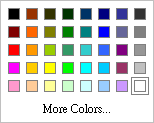
Apply background color to the selected text. If no text is selected, apply to the word if any under the cursor. You can choose color from a palette or click "More Colors" to open the System Color Dialog for more choices.

 
 
13

Apply Foreground Color button

13. Apply Foreground Color button
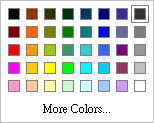
Apply foreground color to the selected text. If no text is selected, apply to the word if any under the cursor. You can choose color from a palette or click "More Colors" to open the System Color Dialog for more choices.
 
 
14

Remove Format button

14. Remove Format button
Remove format and styles from the selected cells or text.