left arrow right arrow help header logo background

Table Element Format

Table Element Format
1

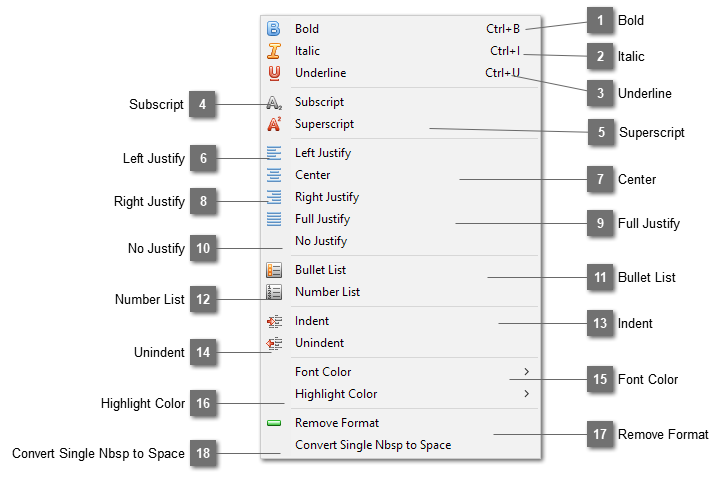
Bold

1. Bold

Bold the selected text.
2

Italic

2. Italic
Change the selected text to italic.
3

Underline

3. Underline
Underline the selected text.
4

Left Justify

4. Left Justify
Left justify the text.
5

Center

5. Center
Center the text.
6

Right Justify

6. Right Justify
Right justify the text.
7

Full Justify

7. Full Justify
Full justify the text.
8

No Justify

8. No Justify
Remove all the justification.
9

Bullet List

9. Bullet List
Insert a bullet list. You can choose disc, circle or square.
10

Number List

10. Number List
Insert a number list. You can choose "1, 2, 3", "a, b, c", "A, B, C", "i, ii, iii" or "I, II, III" from the drop down list of the toolbar.
11

Indent

11. Indent
Indent the text at the cursor position.
12

Unindent

12. Unindent
Unindent the text at the cursor position.
13

Font Color

13. Font Color
14

Highlight Color

14. Highlight Color
15

Remove Format

15. Remove Format
Remove the format and styles from the selected text or selected table cells.
16

Convert Single Nbsp to Space

16. Convert Single Nbsp to Space
Select the text that you want to convert and then choose this action. It will convert the following HTML "<div>Website&nbsp;Realizer</div>" to "<div>Website Realizer</div>". Browsers do not make distinction between these two format and can display them without any differences. However some tools which parse the raw HTML may not be able to interpret "&nbsp;" correctly.