Create images used by the navigation bar
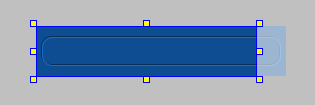
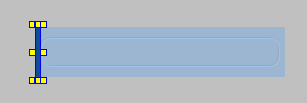
We are going to create the image below first. We will make it a little bit longer so that it can accommodate longer text.

-
Select Tools -> Image Editor from the main menu.
-
Click on the down arrow of this button

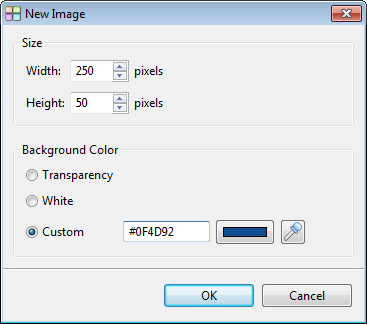
. Select New Image -> Blank. Create a new image of size 250x50. Set background color to #0F4D92.
-
Press the OK button to create the image.
-
Click this button

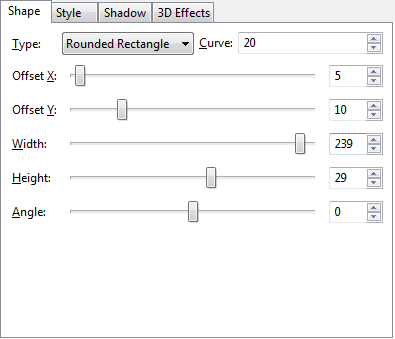
to create an outline of a rounded rectangle. Select the "Shape tab". Set the values of the dialog as shown below.
-
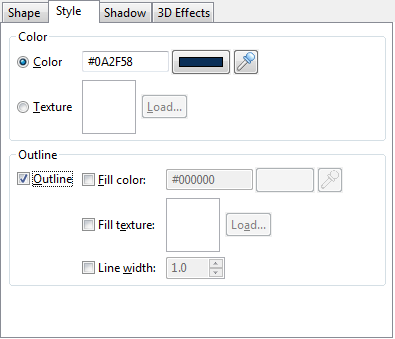
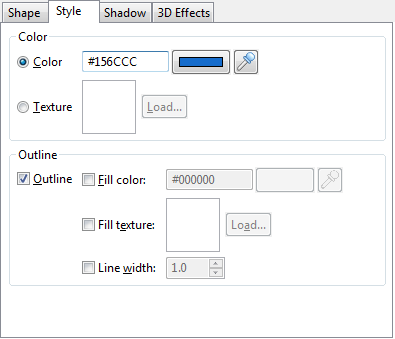
Click on the "Style tab". Set the color to #0A2F58. Select the option "Outline". Click OK to create the rectangle.
-
It should look like the image below.
-
Click this button
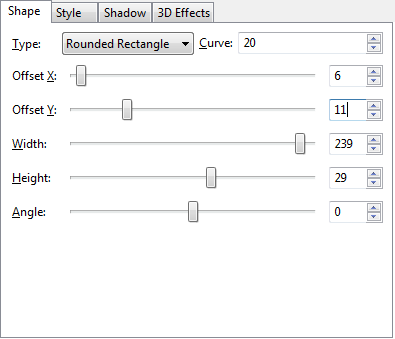
again to create another one. Set the values of the dialog as shown below.
-
Click on the "Style tab". Set the color to #156CCC and select the option "Outline".
-
Click OK to create the outline of a rounded rectangle. The image should look like the one below.
-
As we are going to create three images from this. Uncheck the option "Exit editor after insertion" at the bottom right corner.
-
Make a selection of the image of size 220x50.
-
Click this button

to crop the image.
-
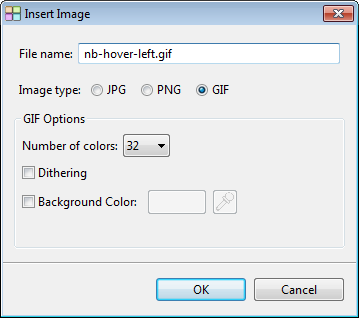
Click the button "Insert to Site". Select GIF for image type and set the number of colors to 32. Enter the name "nb-hover-left.gif".
-
Click OK to write the image to file.
-
Click this button

to undo the cropping.
-
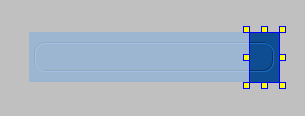
Make another selection of the image 30x50 starting at 220.
-
Click this button
to crop the image.
-
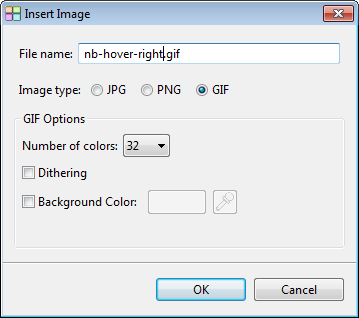
Click the button "Insert to Site". Select GIF for image type and set the number of colors to 32. Enter the name "nb-hover-right.gif".
-
Click OK to write the image to file.
-
Click this button
to undo the cropping again.
-
Make another selection of size 5x50 starting from 0.
-
Click this button
to crop the image.
-
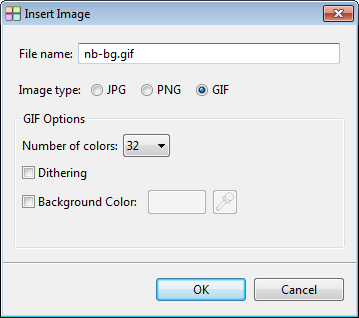
Click the button "Insert to Site". Select GIF for image type and set the number of colors to 32. Enter the name "nb-bg.gif".
-
Click OK to write the image to file.