This section will show you how to add YouTube to your web page.
You will find something like the following at the bottom of a YouTube Video.
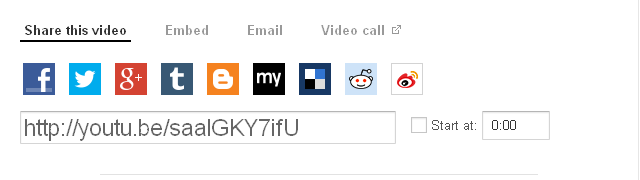
Click on the "Share" link and the following will be shown.
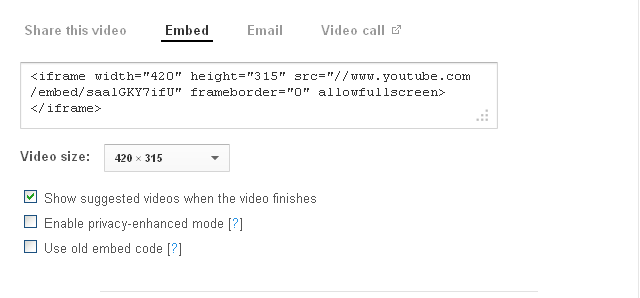
Then click on the "Embed" link. The following will be shown.
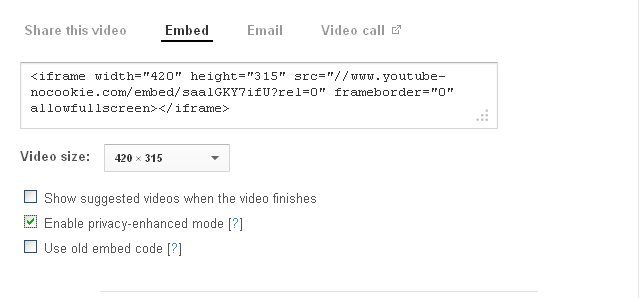
Select the options you like. For example, we uncheck the option "Show suggested videos when the video finishes" and check the option "Enable privacy-enhanced mode". We select the display size 420 x315.
Click on the textbox with HTML code "<iframe width=........" and select all the text.
Right click and select "Copy" from the context menu.
Open a web page that you want to add this YouTube Video.
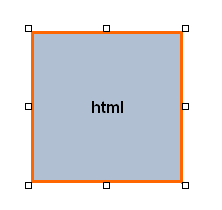
Insert an HTML Source element to the page by clicking on this button . An HTML box will be added to the page.
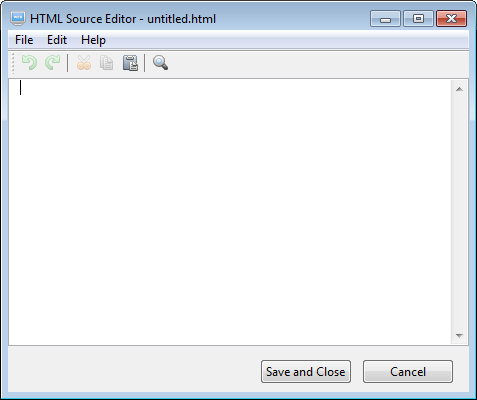
Double-click on the HTML box to open it in the HTML Source Editor.
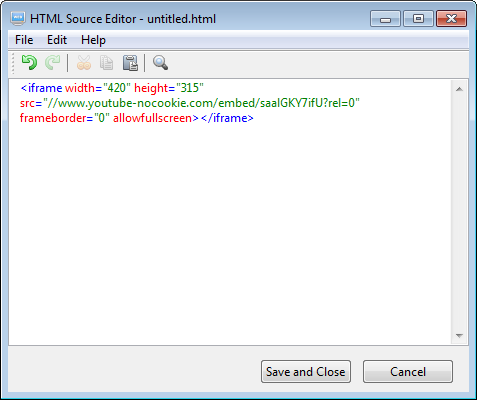
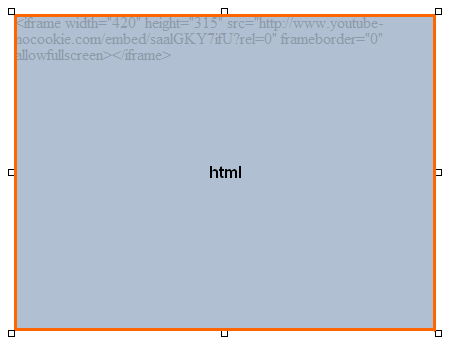
Paste the copied HTML code from YouTube to the editor. Please note that If you have performed other copy actions after copying the HTML code from YouTube, you may need to copy the HTML code from YouTube again.
The HTML code from Youtube works only when the page is published to a web server. To preview it locally in your browsers, you will need to add "http:" before the code "//www.youtube-nocookie......".



 . An HTML box will be added to the page.