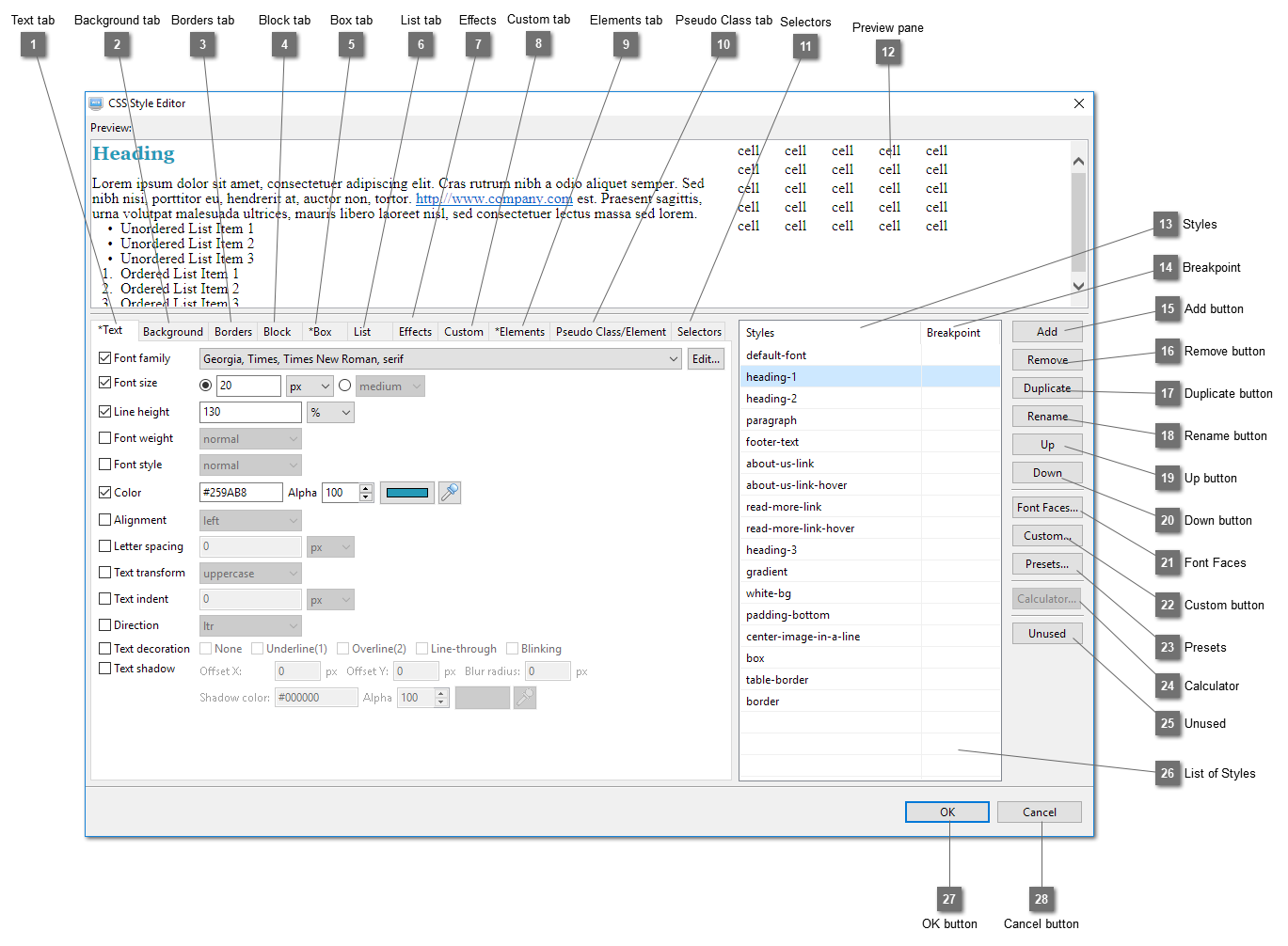
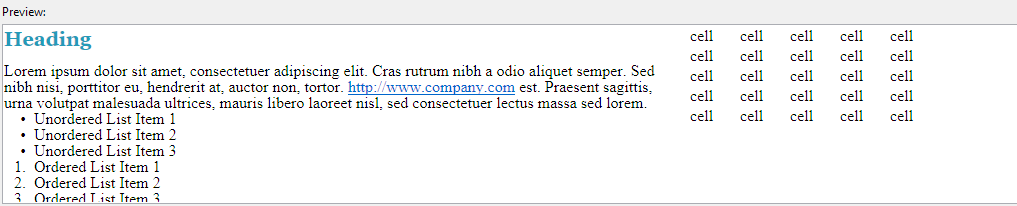
Define style rules using this dialog. Style rules can then be applied to the elements of a web page. When there are changes made to the style rules, all elements using that style will be changed.
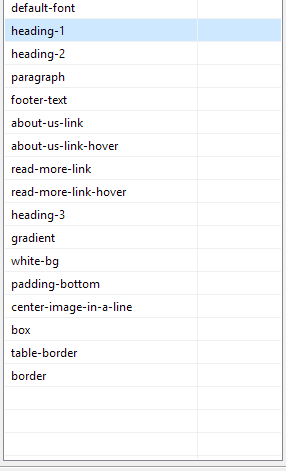
Click the header to rotate among sorting methods. The list can be shown in it's original order determined by the time the style is added to the list or it can be sorted by ascending or descending order. Ascending and descending order can speed up locating the style. However the original order is important in that when there are two styles which both have the same style rule, e.g. color, the one defined in the style that come lower in the list will be used. For example, there are two styles, style1 and style2. The colors of style1 and style2 are set to #FFFFFF (white) and #000000 (black) respectively. Style2 is below style1 on the list. When both style1 and style2 are assigned to a text element, the color of style2 will win and the text of the text element will be black.